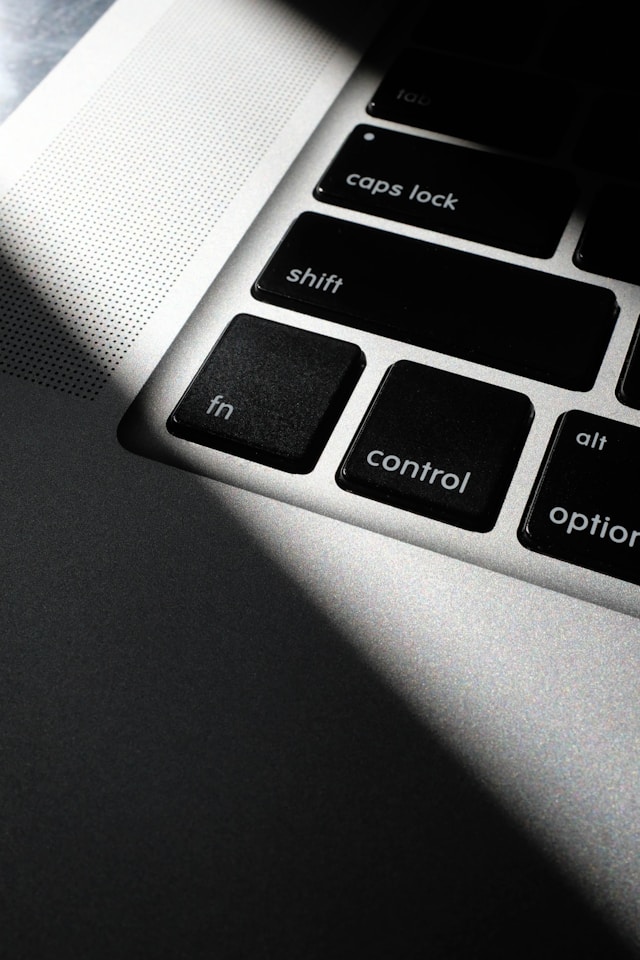
Photo by charlesdeluvio on Unsplash
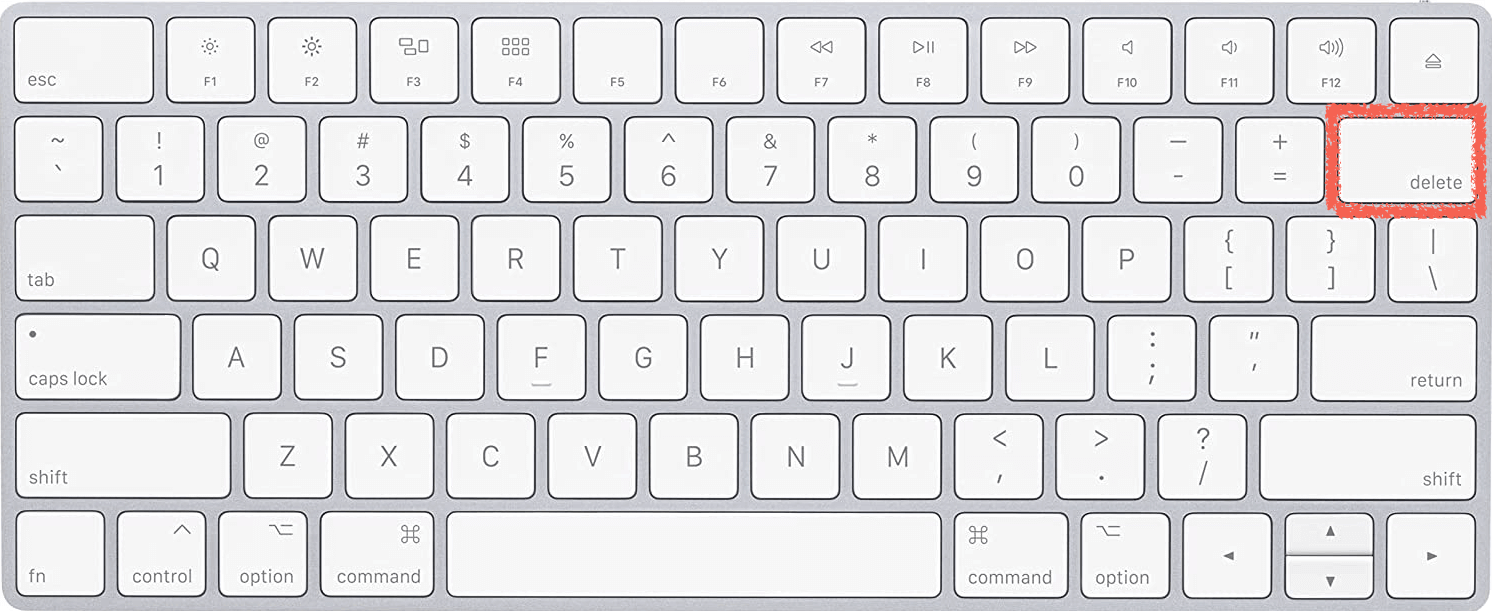
Key Position
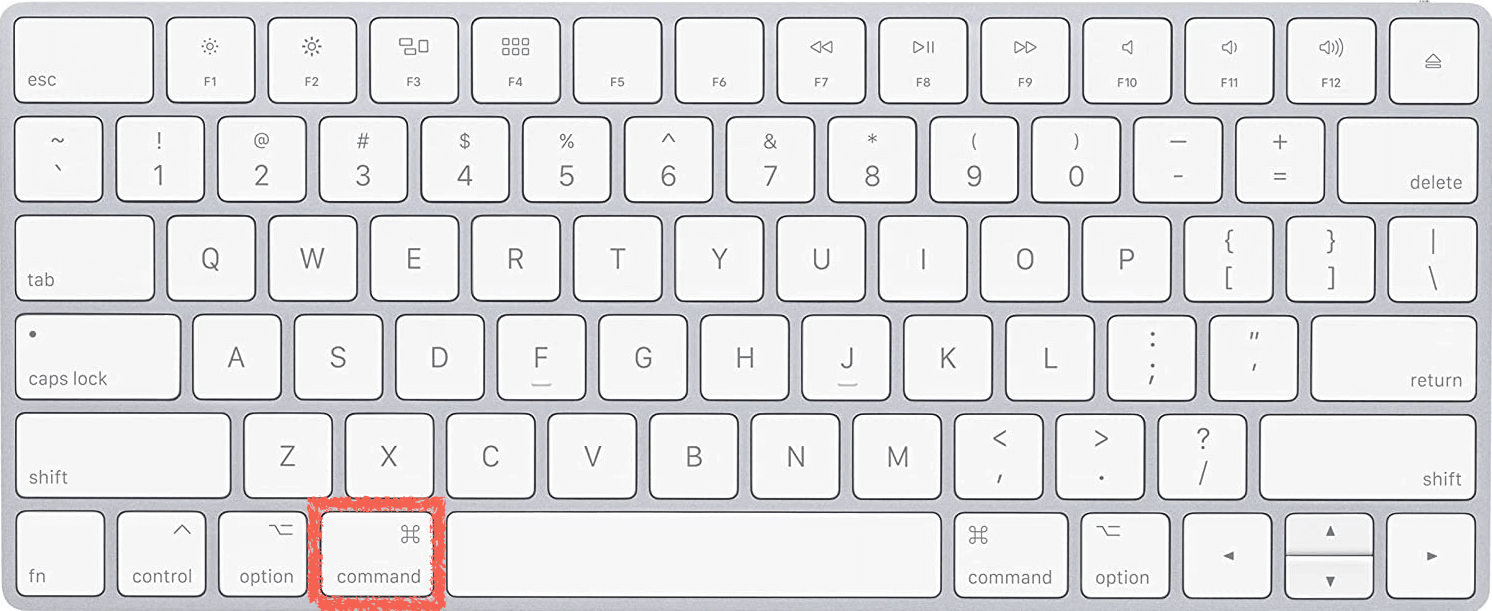
Command(⌘)

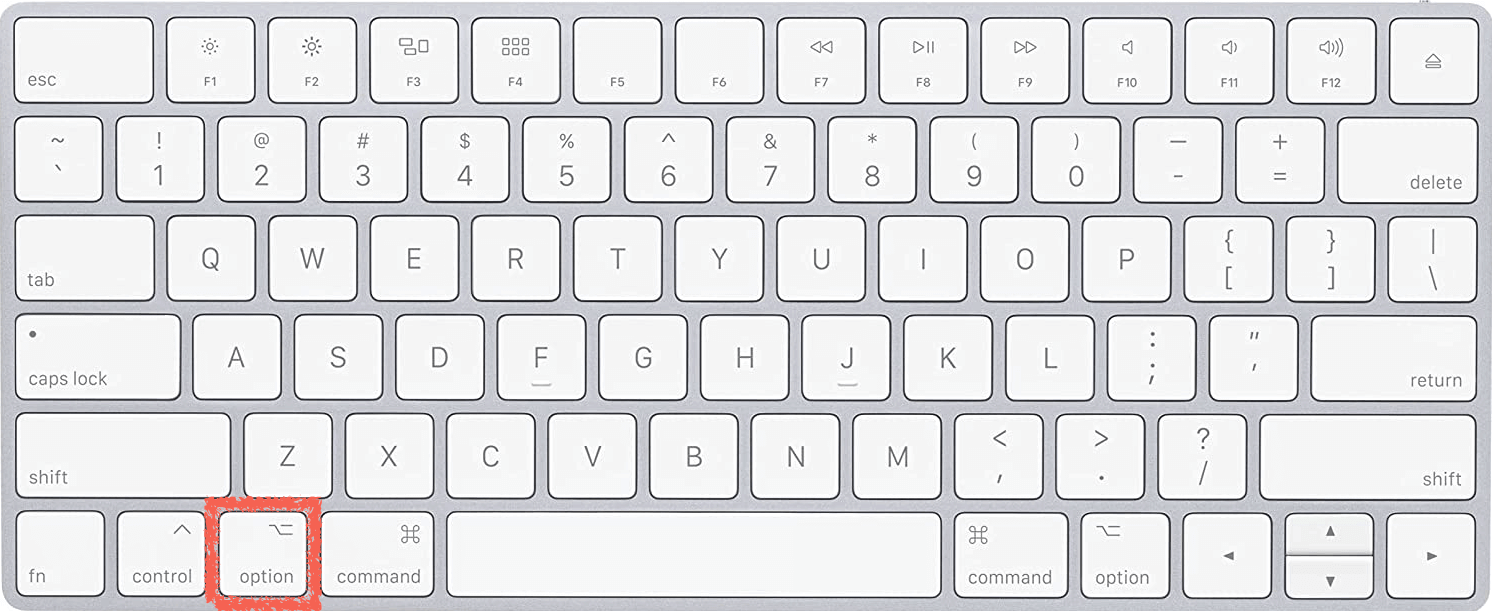
Option(⌥)

Control(⌃)

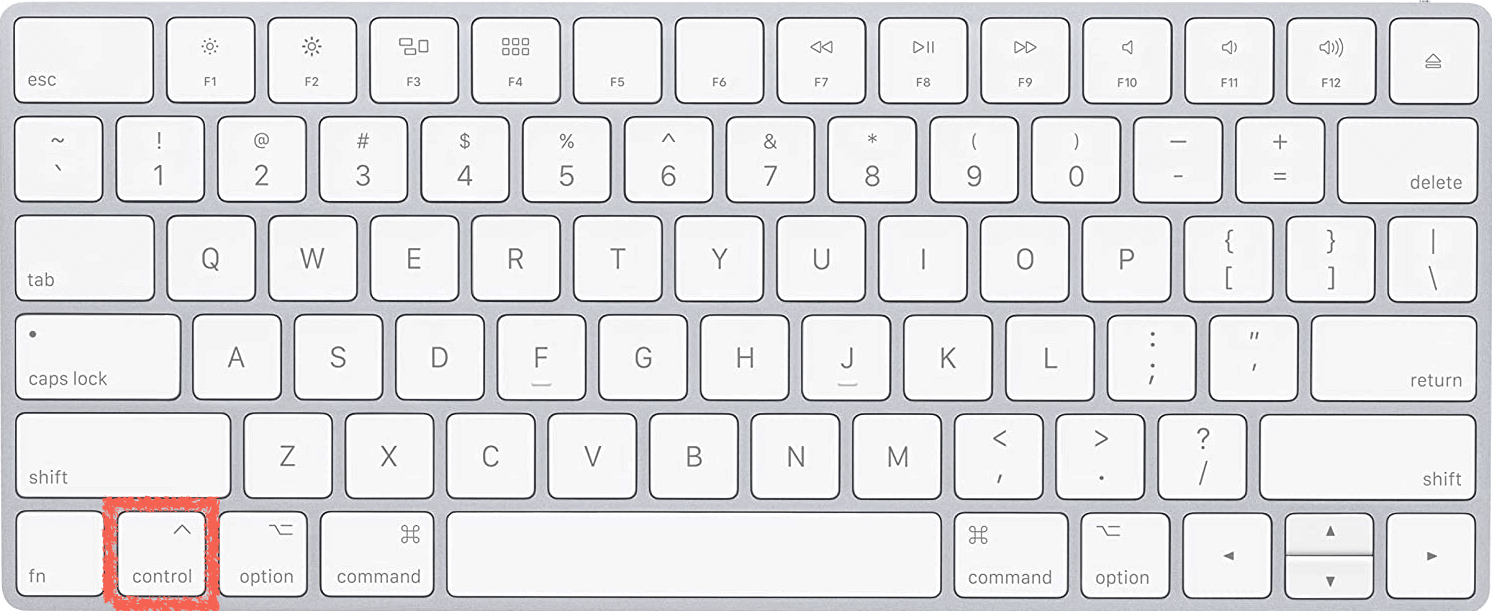
Shift(⇧)

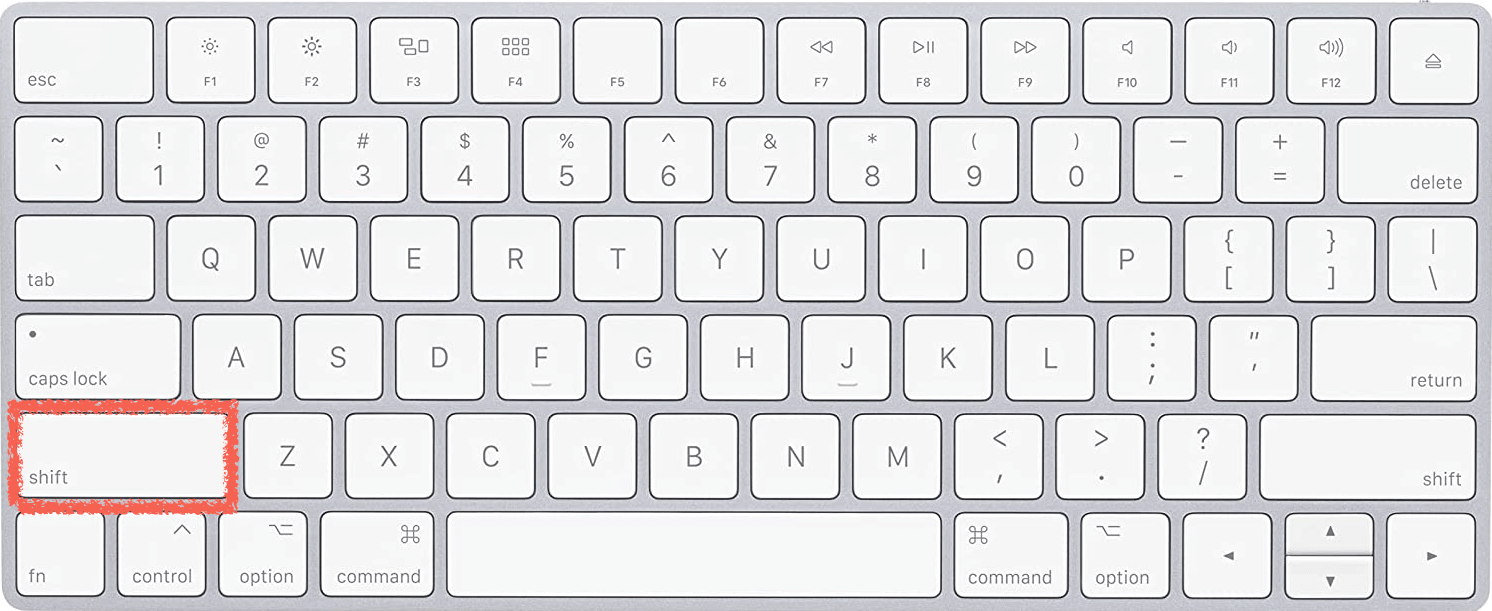
Capslock(⇪)

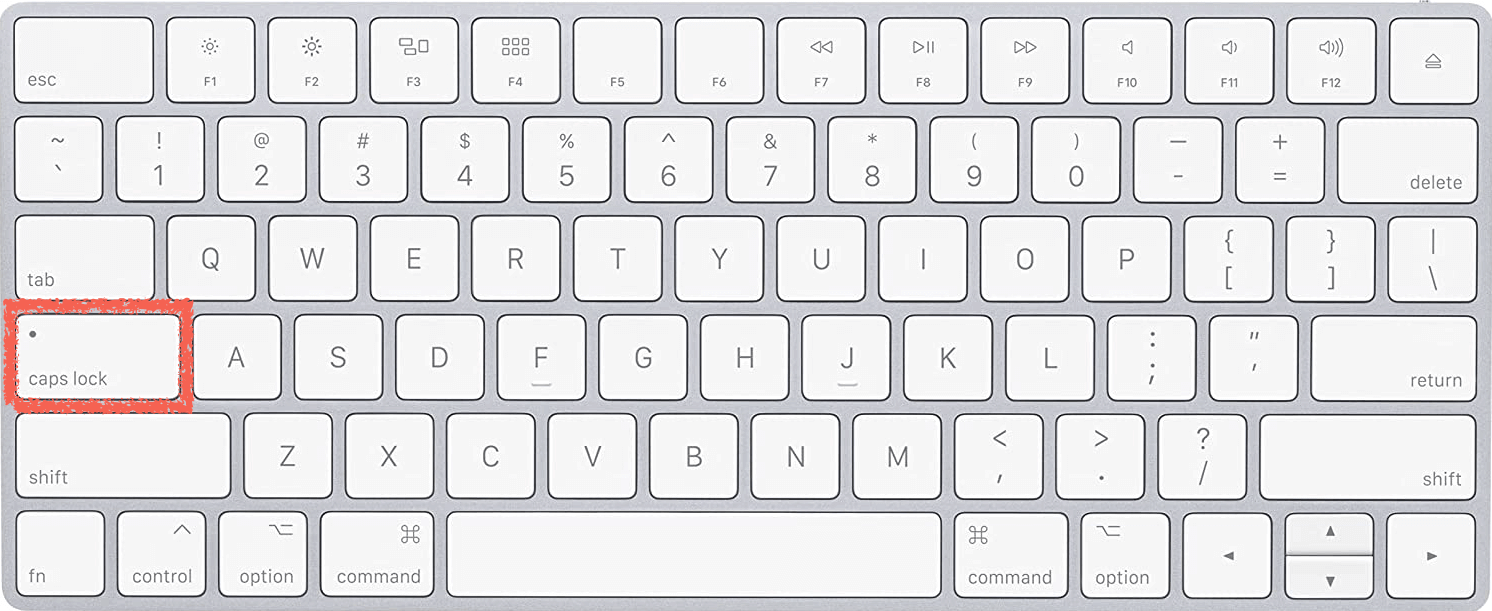
Enter(↩︎) or return(↩︎)
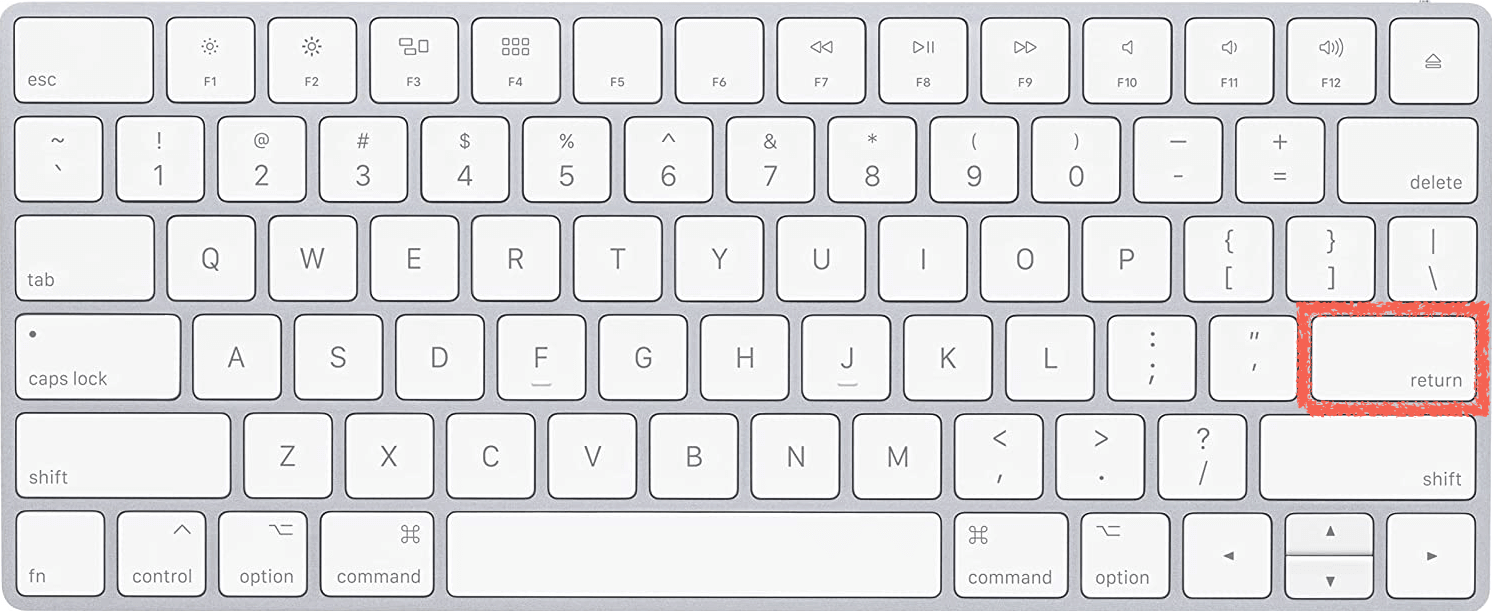
Delete(⌫)
Content
| Function | Shortcut |
|---|---|
| Copy | Command(⌘)+C |
| Paste | Command(⌘)+V |
| Cut | Command(⌘)+X |
| Undo | Command(⌘)+Z |
| Redo | Command(⌘)+Y |
| Increase Font Size | Command(⌘)++(plus) |
| Decrease Font Size | Command(⌘)+-(minus) |
| Refresh | Command(⌘)+R |
| Bookmark Current Page in Browser | Command(⌘)+D |
| Bookmark All Tabs in Browser | Command(⌘)+Shift+D |
| Search Text | Command(⌘)+F |
| Preferences | Command(⌘)+, |
| Quit Application | Command(⌘)+Q |
| Delete Text to the Right of Cursor | Fn+Delete |
| Move Cursor to Beginning of Line | Command(⌘)+⇐ |
| Move Cursor to End of Line | Command(⌘)+⇒ |
| Move to Top of Document | Command(⌘)+⇧ |
| Move to Bottom of Document | Command(⌘)+⬇︎ |
File
| Function | Shortcut |
|---|---|
| Copy | Command(⌘)+C |
| Paste, Keep Original File | Command(⌘)+V |
| Paste, Delete Original File | Command(⌘) + Option(⌥) + V |
| Show Hidden Files | Command(⌘) + Shift(⇧) + ., in Finder |
Screenshot
Captured images are saved to the desktop by default.
| Function | Shortcut |
|---|---|
| Capture Entire Screen | Command(⌘)+shift+3 |
| Capture Selected Portion of Screen | Command(⌘)+shift+4, then select the area with the mouse |
| Capture Entire Window (with shadow) | Command(⌘)+shift+4+Space Bar, then press the space bar and select the window to capture |
| Capture Entire Window (without shadow) | Command(⌘)+shift+4+Space Bar & Option, then press the space bar & hold Option, and select the window to capture |
System
Power Button: Upper right corner of keyboard.
| Function | Shortcut |
|---|---|
| Turn Off Display | Shift(⇧) + Command(⌘) + Power Button |
| Sleep | Command(⌘) + Option(⌥) + Power Button |
| Restart | Command(⌘) + Command(⌘) + Power Button |
| Shut Down | Command(⌘) + Option(⌥) + Command(⌘) + Power Button |
| Log Out Current User | Shift(⇧) + Command(⌘) + Q |
| Lock Screen | Command(⌘) + Control(⌃) + Q |
| Open List of Running Applications | Option(⌥) + Command(⌘) + Power Button |
Tab
| Function | Shortcut |
|---|---|
| New Tab | Command(⌘)+ T, works in both Finder and browsers like Chrome. |
| Close Tab | Command(⌘)+ W |
| Switch to Left Tab | Command(⌘)+ Shift(⇧) + [ |
| Switch to Right Tab | Command(⌘)+ Shift(⇧) + ] |
| Switch to Specific Tab | Command(⌘) + Number Key (1~8) |
| Switch to Last Tab | Command(⌘) + 9 |
| New Window | Command(⌘)+ N |
Window
| Function | Shortcut |
|---|---|
| Minimize Current Window | Command(⌘)+M |
| Minimize All Windows | Option+Command(⌘)+M |
| Hide Window | Command(⌘)+H |
| Toggle Full-Screen Window | Command(⌘)+Control+F |
| Zoom In Content | Command(⌘)++ |
| Zoom Out Content | Command(⌘)+- |
| Restore Content to Original Size | Command(⌘)+0 |
Sound
| Function | Shortcut |
|---|---|
| Increase Volume | F11 |
| Decrease Volume | F12 |
| Fine-tune Increase Volume | Option(⌥) + Shift(⇧) + F11 |
| Fine-tune Decrease Volume | Option(⌥) + Shift(⇧) + F12 |
Emoji & Special Character
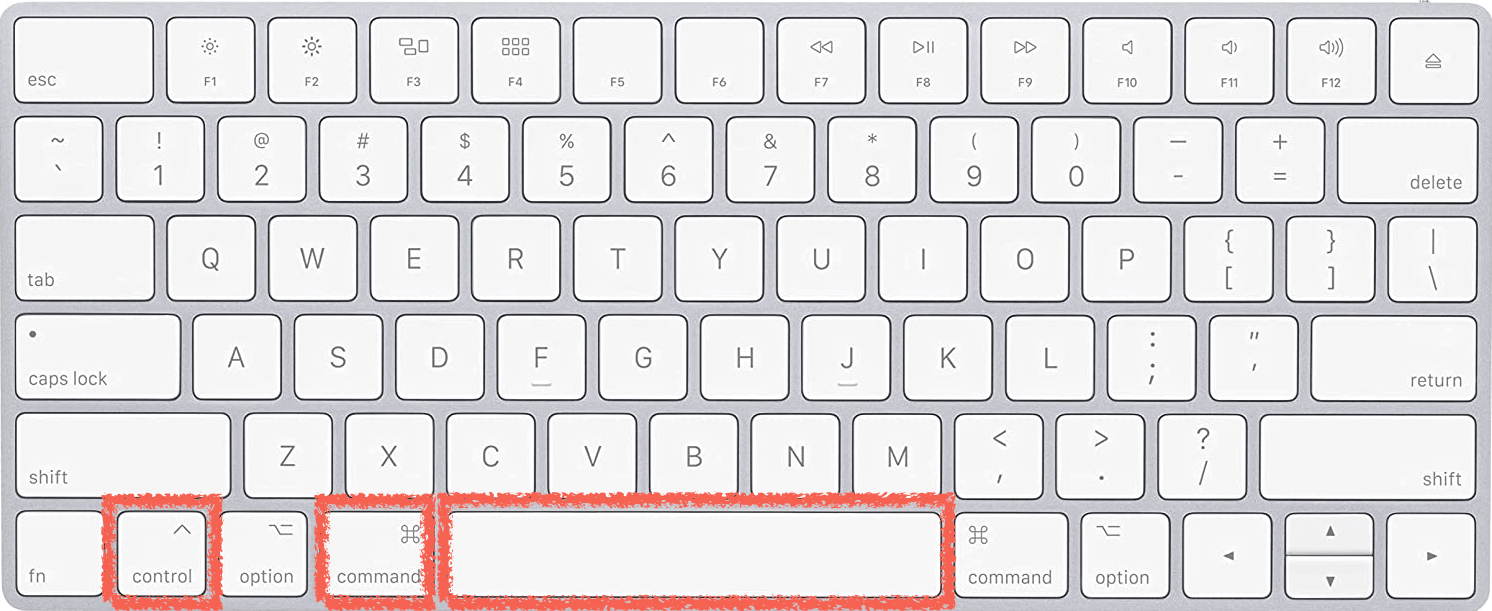
Input Command(⌘) + Control(⌃) + Space Bar to enter emoji and special characters 🥺